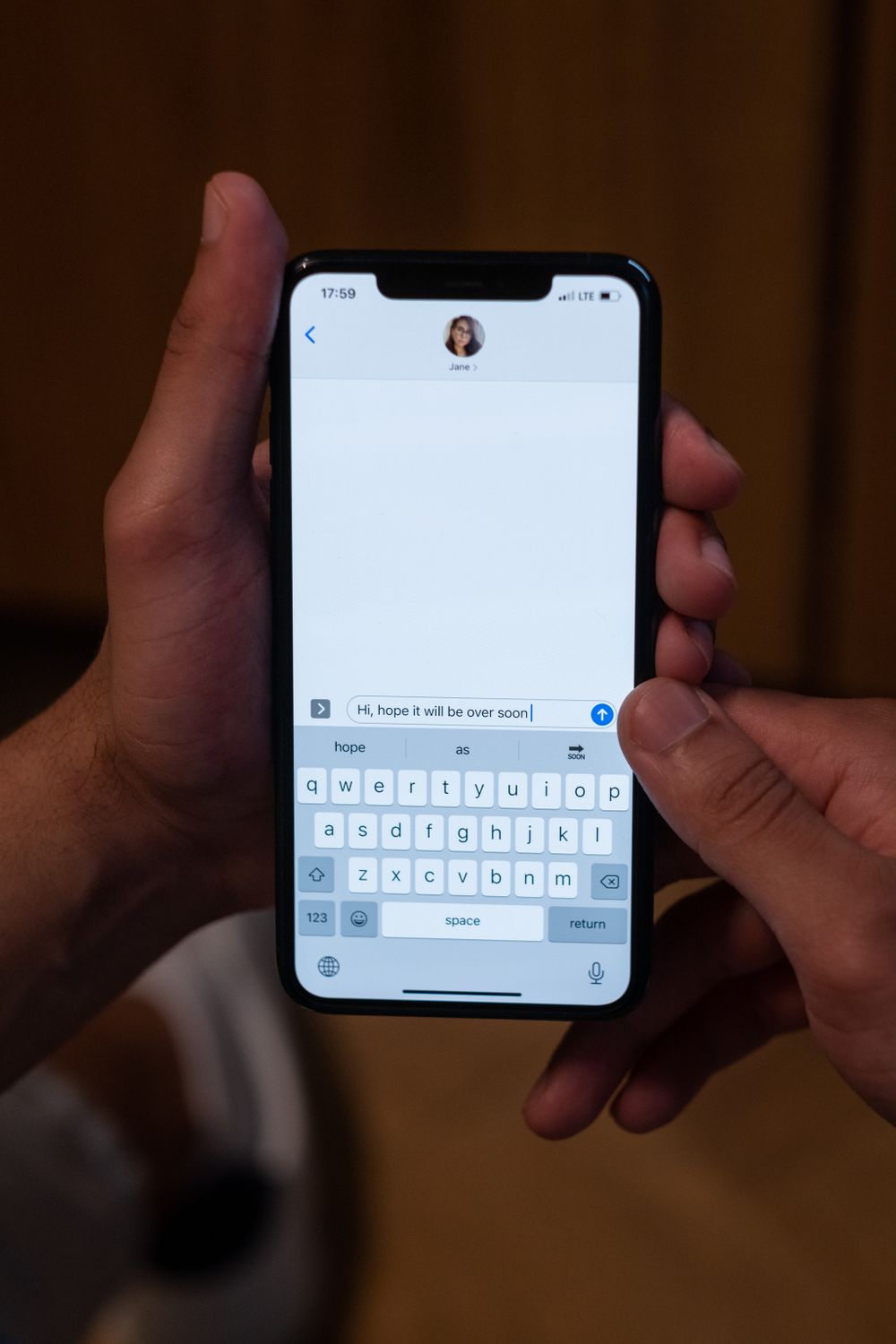
Gemini Live’s Guided Vision has arrived on iPhone. With the camera on, you can ask it to read the instructions on a box and, if the text slips out of view, tell you which way to tilt the phone. Google developed those spoken cues with people who are blind or have low vision. A familiar label gives new users a straightforward way to try the guidance and check the result. The iOS release follows the feature’s Android debut in October. [1][3]
Start with a label you can check
For a first attempt, you can set a familiar package on a table and open the Gemini app on your iPhone. After signing in, tap Live at the bottom of the screen, or swipe left to open it. Follow any instructions the app shows on your first visit, then tap the camera button to share the view. If the phone shows your face, you can switch to the rear camera. Google’s iPhone help explains how to switch cameras during a session. Live requires the mobile app and an eligible account, and Google says updates reach users gradually. [1][2][4]
With one box in view, you can begin by asking Gemini to identify it. Once it has the name, turn the box and ask it to read the first line of the cooking instructions. If it describes the serving suggestion on the front again, interrupt and tell it you want the text on the side panel. You can speak over its reply to make that correction. If spoken interruptions are turned off in Gemini’s settings, Google says tapping the screen still interrupts the reply. Someone who wants to see the words as well as hear them can turn on captions at the top right in Live. [2][3]
Before turning the package again, you can listen for the next framing cue. Google says the assistant can prompt you to tilt the camera, move back or pan to one side. If the request is about small print, first let it find the panel with the writing on it. Once that is in view, ask which line it can read clearly. Moving the phone and rotating the package at the same time can make an instruction like “to the right” hard to follow. If you hold either the phone or the package still, the next cue is easier to follow. [3][4]
How to ask for a price or find an object
At a restaurant, start by asking which part of the menu is in the frame. A description of the page may be enough to find the desserts. To choose between two of them, ask Gemini to read the name and printed price of each from the same line. If it can see an item but loses the price at the right edge of the page, ask which way to move the phone. A follow-up about the cake’s price lets you steer the conversation back to the detail you need. [3][4]
An object search is easier to follow when you give it a small area to examine. Google gives the example of finding pepper in a spice cabinet. Ask which shelf is in view, then slowly move across that shelf and ask whether a jar labeled pepper appears. If there are two similar jars, bring one label into view before deciding which one you have. The black lid may help you locate a candidate, while the label tells you what the jar contains. The same approach works for comparing two garments. Ask about a specific stripe or color with both items in the shot. [3][4]
Google says Guided Vision can describe a room and help find everyday objects. It cautions against relying on the feature for navigation or obstacle detection. Getting a description of what is on a table is within the intended use. Deciding whether a walkway is clear requires a mobility aid or the safe-travel practices you already use. An answer delivered in a confident speaking voice can still be wrong. You should ask permission before including someone else in the camera view or the conversation. [2][3][4]
What happens to the camera when you pause
On iPhone, the camera button toggles the view on and off. You can stop showing the room and continue asking about something you just discussed. The Hold control pauses the whole conversation, turning off both the microphone and the camera. Google says that when you continue that chat, the camera comes back on if it was on before the hold. If you put the phone down for a private conversation after showing a label, you can check both controls before resuming. [2]
Leaving Gemini or locking the screen also turns the camera off. In those two cases it stays off when you return to the app or unlock the device until you share it again. If Gemini was reading a menu and seems unable to see what you point at after an interruption, check the camera button before adjusting the lighting or pointing the phone somewhere else. Screen sharing is a separate command. A view of the phone’s display cannot show the menu lying on the table. [2]
How to add a Live shortcut
Google offers a Gemini widget on iPhones running iOS 17 or later. You can press and hold the Home Screen, select Edit to add a widget, search for Gemini and choose a widget. Its actions remain editable afterward. The action that opens Live is the one to choose for Guided Vision. Google also offers a camera action for taking a picture. Someone who wants to keep a conversation going while turning a package over will want the Live entry, then the camera inside the conversation. You can also add Gemini to the Lock Screen by pressing and holding an empty space, choosing Customize and opening the widget picker. That saves a trip through the Home Screen when both hands are already occupied with the phone and the package. [5]
Google worked with Aira on the spoken cues. More than a thousand people in Aira’s tester network tried the model during their daily routines, according to Google, and specialists helped evaluate its safety rules. You can close the session with End when you have the information you wanted. That leaves a transcript you can review later. The transcript records Gemini’s reading of the scene, so an odd-looking name or price may call for another look at the original. You can reopen the chat, enter Live and show it the page again. [2][3]
Sources
[1] Google Gemini’s iOS announcement
[2] Google’s iPhone and iPad guide to Gemini Live
[3] Google’s account of Guided Vision’s development and uses
[4] Guided Vision help and limitations
[5] Google’s iPhone guide to Gemini widgets
Have a correction or a useful perspective?
Get in touch with the publication.